
Full remote control over your Mac — power & console, from one portal
Every hosted Mac at vBoxx ships with audited APC power control included. Add the optional JetKVM console when you need a real browser-based KVM with virtual media — perfect for reinstalling or recovering macOS remotely.
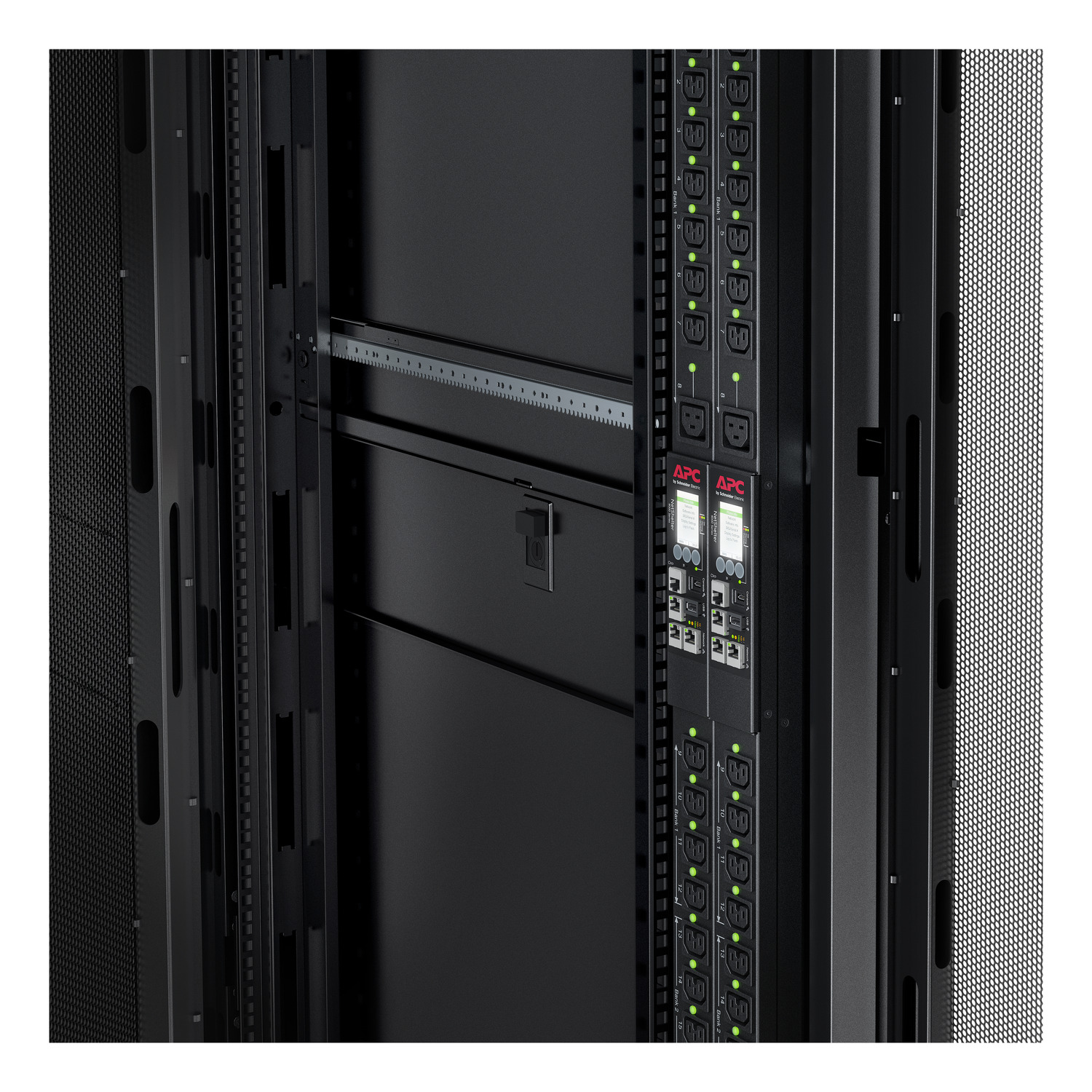
Remote power control via APC
Every Mac mini is wired to a managed APC PDU. From the portal you can power cycle, hard-reboot or shut down your machine within seconds — with full audit trail.
- Power on, power off and reboot per outlet
- Confirmation step + reason field for compliance
- Per-action audit log: who, when, why, from which IP
- Rate-limited to protect your hardware
- Available on every Mac mini at no extra cost
How remote power & reboot works
Every Mac at vBoxx is wired to an APC Switched Rack PDU by Schneider Electric. That means your outlet — not just your OS — is remotely controllable. When macOS locks up, kernel panics or refuses to boot, you don't need to open a ticket and wait for a technician: you cycle the outlet yourself from the portal, with a full audit trail.
Power on
Bring the outlet up after a scheduled shutdown or maintenance window. Mac boots automatically thanks to "Start up automatically after a power failure".
Reboot (power cycle)
Cuts power for 8 seconds, then restores it. Use this when macOS is unresponsive over SSH/Screen Sharing and a soft reboot no longer works.
Power off
Force-off at the PDU. Intended for emergencies — prefer a graceful shutdown via macOS when the machine is still reachable.
What you see in your portal
Open your service and switch to the Power tab. You'll get:
- Live outlet state (On / Off / Cycling) polled from the PDU every few seconds.
- Time since last state change, plus the last three power events inline.
- A required "reason" field on every action — stored with your user, IP and timestamp.
- Complete audit log with who did what, when, and from where — exportable as CSV.
- Rate limiting: max 3 power actions per 5 minutes per service to prevent hardware stress.
- Optional email/webhook notifications to your team on every power event.
- Rebootyou · 81.204.x.x2 min ago
- Power onjan@acme.io · 145.90.x.x4 days ago
- Power offjan@acme.io · 145.90.x.x4 days ago
Illustration of the Power tab inside your vBoxx portal.
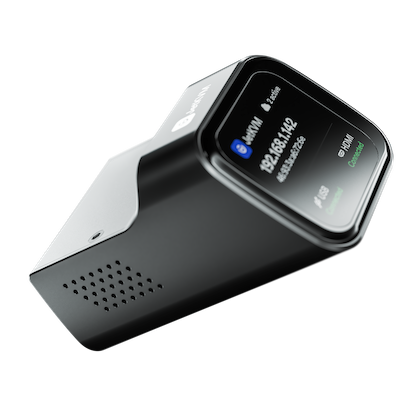
Real KVM console with JetKVM
Optional JetKVM add-on gives you a true console: keyboard, video, mouse — plus virtual media to mount your own ISO and reinstall macOS without leaving your chair.
- Browser-based console, no client install
- Virtual media: mount your own .iso or .dmg
- BIOS/firmware level access for recovery
- Short-lived signed sessions, full audit log
- Add-on at order time or upgrade later
From portal login to booting an ISO — in 5 steps
Click through the walkthrough below to see exactly what you'll do when you need to reinstall macOS, mount a recovery image, or take over the console.
Open the Console tab
From your portal, open a service and switch to the Console tab. The JetKVM viewer is embedded — no plugin, no VPN, no local software.
Tip: Portal → Services → mac-mini-ams-042 → Console
FAQ
JetKVM · compatibility, latency and virtual media
The most common questions we get about running JetKVM against your Mac in our datacenters.
- JetKVM is OS-agnostic — it captures HDMI output and emulates a USB keyboard, mouse and mass-storage device, so it works on every Mac mini M6 and M5 Pro we ship, from macOS Ventura through macOS Tahoe 26. It also works before macOS boots, so you can use it in the Startup Manager, Recovery and during a fresh install.
- The console streams your Mac's HDMI output at up to 1080p60. You can resize the viewport in the portal; the stream adapts quality to your connection to keep interaction responsive.
- Round-trip latency from Western Europe to our Amsterdam and Naaldwijk sites is typically 15–40 ms end-to-end for keyboard and mouse input. Frankfurt adds a few milliseconds. It feels close to a local session for admin work; it's not intended for gaming or video editing over the KVM.
- No. JetKVM sits between the Mac and the network as a hardware device, so macOS sees a regular monitor and USB peripherals. Nothing to install, nothing to update, and it keeps working even if macOS is offline, stuck at FileVault or booted into Recovery.
- From the Console tab you open Virtual Media, pick an ISO from our library (macOS installers, diagnostics, Linux live) or upload your own, and JetKVM presents it to the Mac as a USB drive. Trigger a reboot, hold Option in the Startup Manager and boot straight from the mounted image — no on-site hands needed.
- Yes. Console sessions are TLS-encrypted end-to-end and only reachable through your authenticated portal session. Every start, stop, ISO mount and reboot is written to the audit log with user, timestamp and reason, and we rate-limit destructive actions to prevent accidents.
- One interactive session at a time per Mac to avoid input conflicts, but any teammate with access can take over — the current session is shown in the portal and can be handed off with one click. All takeovers are audited.
- That's exactly what the APC Power tab is for: you can power-cycle the outlet feeding the Mac (and, if needed, the JetKVM) from the portal. Our on-site engineers also monitor JetKVM health and swap units under SLA if a device fails.
Which Macs and macOS versions does JetKVM work with?+
What resolution and refresh rate do I get in the console?+
What latency should I expect?+
Does JetKVM need anything installed on macOS?+
How does virtual media (ISO mount) work?+
Is the session encrypted and access-controlled?+
Can multiple team members use the console at the same time?+
What if JetKVM itself becomes unreachable?+
Add JetKVM or activate power control on your Mac
Already have a Mac hosted with vBoxx? Enable APC power control for free or request the JetKVM add-on (€9/mo) from your portal — we'll attach the device to your Mac within one business day. New here? Configure a Mac and pick the add-ons in one flow.
- No downtime — we hot-attach the JetKVM to your existing Mac
- Cancel any time, monthly billing
- Instant access from your portal once activated
Who can reach your KVM — and how
Remote management is powerful, so access is tightly scoped. Here's exactly how KVM sessions, virtual media, and power actions are protected on your Mac.
Portal-only access
KVM console, virtual media mounts, and APC power actions are only reachable from an authenticated portal session bound to your account. No public URLs, no shared links.
IP allowlisting
Optionally restrict KVM and power endpoints to your office or VPN IP ranges. Requests from outside the allowlist are rejected before they reach the device.
Full audit trail
Every power on/off/reboot, KVM session, and ISO mount is logged with the user, timestamp, source IP and the reason you provide — visible on the service page.
Who has access on your side: only users you invite to your organisation in the portal. Roles decide who can trigger power actions or open KVM — read-only members can view status without control.
Who has access on our side: a small on-call operations team, only when you open a support ticket or for scheduled maintenance. Access is logged and shown in your audit trail.
This page is maintained by vBoxx and describes controls currently enabled in the product. It is not a certification statement — see our ISO 27001 page for our formal certificate.